
PDF Reader Overview
The PDF Reader is designed to provide an accessible, simple, and enhanced viewing experience for your academic content directly from our web and desktop app. In this article you will find information on various features that are available when viewing content in the PDF Reader.
Top Left Panel
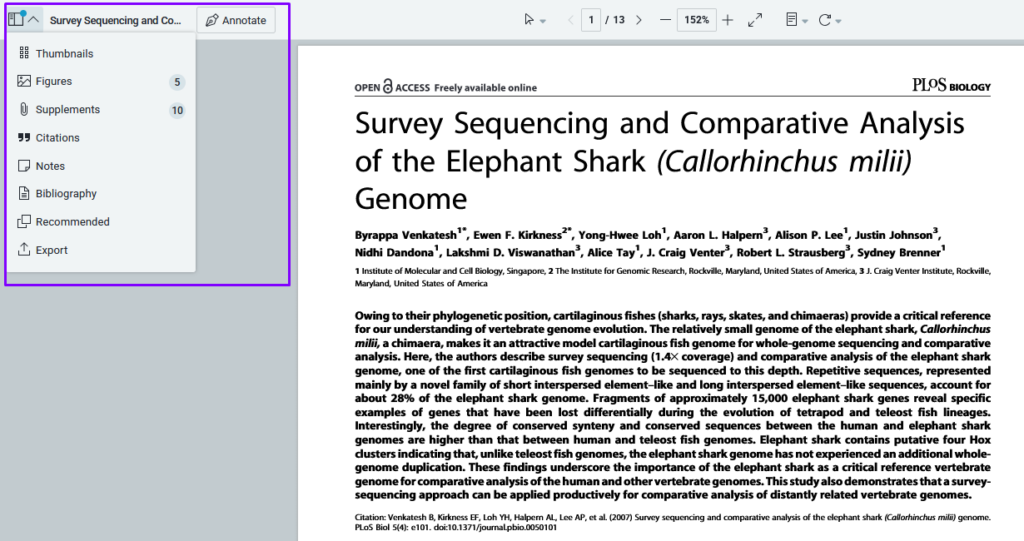
By clicking the down arrow on the far left of the app, a new menu will open with numerous options. Beginning from the top they are:
- Thumbnails – click to view your content in quick, bite-sized portions
- Figures – view only the figures (graphs, charts, etc.)
- Supplements – view any supplemental files associated with the main document
- Citations – view the metrics of the article you’re viewing, such as the number of times it’s been cited in other papers
- Notes – view any annotations you’ve made in the document
- Bibliography – view articles cited within the document you’re viewing
- Recommend – get recommendations based on the content of the article you’re viewing
- Export – export a citation of your article in .bib or .ris format
Top Middle Panel
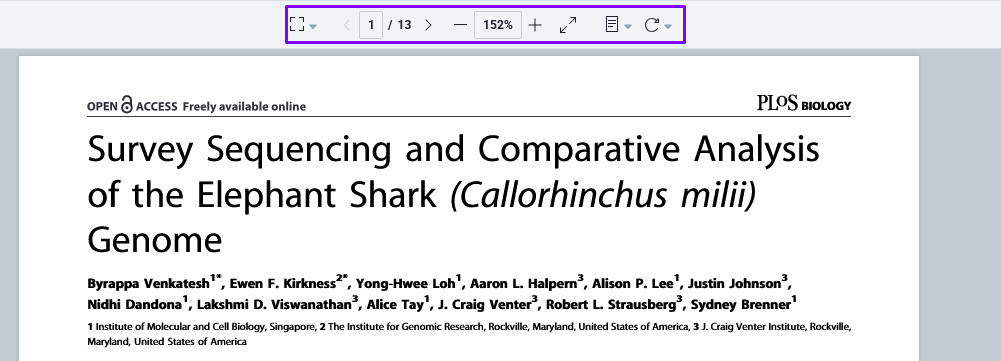
The top middle menu of the Reader has several useful features to tailor your reading experience. From left to right they are:
- Cursor mode – change between a standard cursor, a hand tool for moving annotations around, a capture tool which will take a snapshot of what you select and save it to your clipboard, and marquee zoom which allows you to zoom in in a specific area of your document
- Next/Previous page
- Zoom
- Fit width (great for full screen reading)
- Page view and scroll (single, double, and continuous scroll options)
- Rotate page (rotate all pages or just the one being viewed)
Top Right Panel
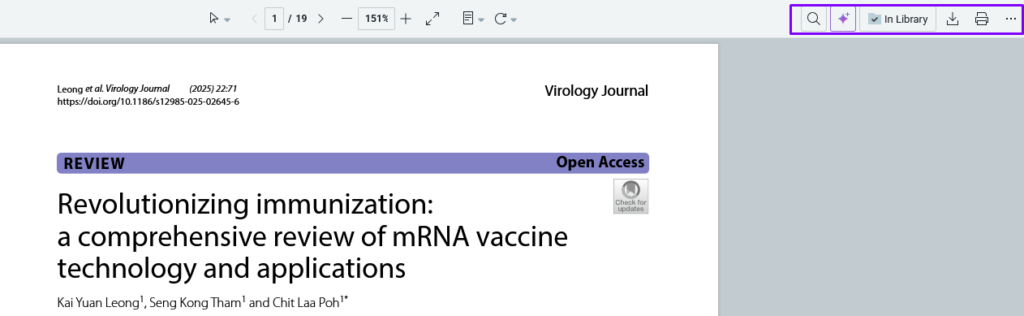
The top right panel of the Reader contains several useful, functional features. From left to right they are:
- Find (find any specific word(s))
- AI Assistant (if applicable)
- Import to Library/In Library – if the article you’re viewing is not currently in your library, this will give you the option to import. Otherwise it will be marked as “In Library”
- Download – download a local copy of the PDF, with or without annotations and notes
- Print – print a copy of your PDF, with or without annotations and notes
- Ellipsis – the ellipsis at the end of the right panel will open additional options, such as dark mode and a way to contact Support if you need assistance.
Updated on February 18, 2026


