File Management
(Only applicable on the desktop application v4.37.xxxx)
To select where to save PDFs of your Papers library as well as using features involving files that are within the library or outside of the application you will need to use our File Management feature.
You can access this feature by either (mac) at the top of the window select Papers -> Papers settings or (Windows) select the Papers icon at the top left and select Papers settings.
From the window that appears you will need to select the Library Pane:
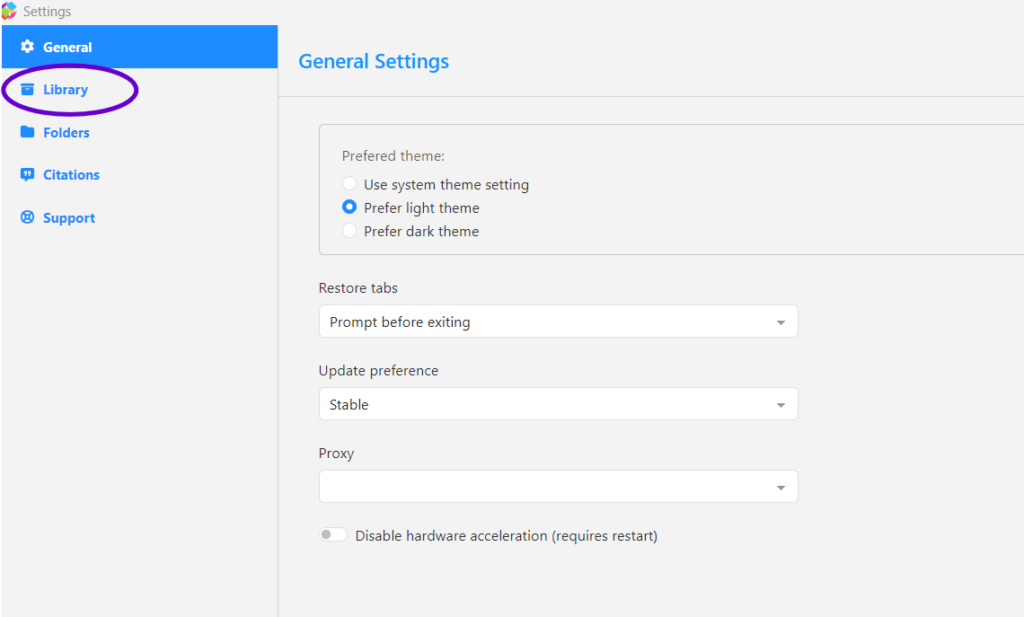
From the Library tab you will be able to select the location where you can save your PDFs. As well as merge duplicates when dragging and dropping them into your library. The application will check if there are duplicate DOIs with those already in your library and merge them.
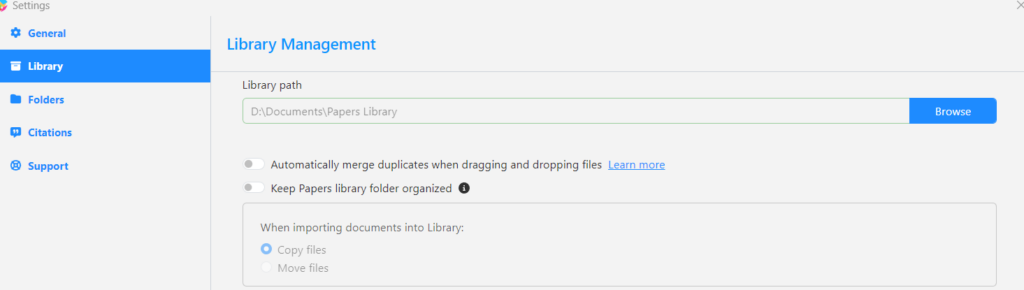
When importing documents into the library via drag and drop you can copy the file from where you drag and dropped it or move it entirely into your library to save space on your computer.
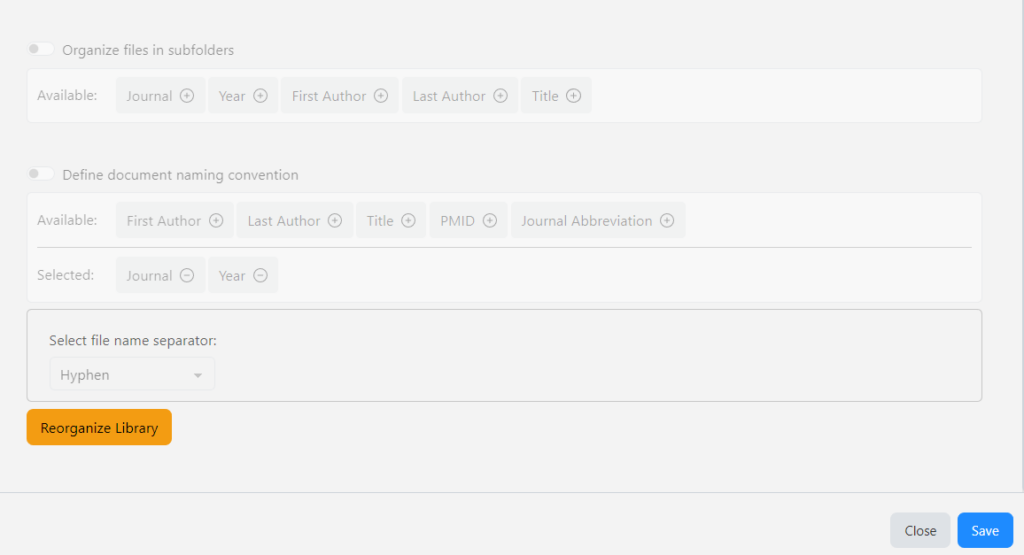
When also saving your Papers library locally you can organize how the files are saved and state how the folders and file names are set when downloading them locally.