
Downloading PDFs/Offline Access
(Only applicable on the desktop application v4.37.xxxx)
When you do not have internet access or want to have your Papers library’s PDFs saved onto your computer you will be able to do this by our Offline Access feature only on our desktop application(v4.37.xxxx).
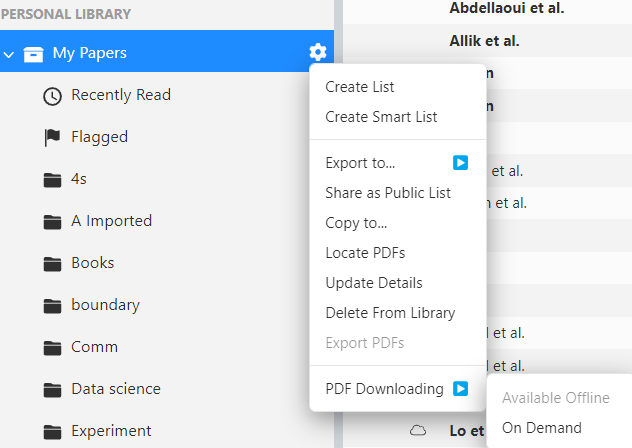
When opening the desktop application you will need to go to the gear settings of the desired library and from the drop down menu you will have to traverse to PDF Downloading and select “Available Offline”.
The option currently selected will be greyed out, if you notice that it is greyed out you will not need to worry. After a few minutes the application will download all of the PDFs of that library locally, by default it will be under “Papers Library” folder within your Documents folder.
After the application has downloaded the PDFs you can also access them on our app while you have no internet connection.
If you would like to move the location of the Papers library or how the PDFs are downloaded you can learn more from our File Management page.


