
Skip to content
papers_logo
  • Pricing
  • AI Assistant
  • Resources
    • Download Center
    • Training Center
    • Help Center
    • Blog
  • Institutions
  • Enterprise
  • Log In
  • Start Trial

Help Center

  • Getting Started
  • Live Training
  • Downloads
Submit a Ticket

Getting Started

16
  • Quick Start Guide
  • Papers Desktop vs Web App
  • Revert to Papers Classic
  • Papers Pro FAQ
  • What shortcuts are presently supported
  • How to Import Content into Papers Reference Manager
  • Migrating from Mendeley to Papers
  • Importing Your Library From Endnote
  • Import From Another Reference Manager
  • How to Import Content into Your Papers Library via CSV
  • How to Add Metadata-Only References to Your Papers Library
  • Import by Use of .ris File From External Database – With PDFs and Without PDFs
  • How to Import Records from ClinicalTrials.gov into Papers
  • Article Matching (Manual and With Helper)
  • Metadata Resolving & Incomplete Records
  • How to Import Pubmed .Nbib Files Into Papers

Installation and Setup

5
  • How to toggle dark mode in the Papers desktop app
  • Papers System Requirements: What You Need to Get Started
  • Installing the Papers Desktop Application
  • How To Set Up My Institutional Proxy in Papers?
  • How to get Help/Support

Papers AI Assistant

4
  • Introduction to AI Assistant
  • Chat with PDF
  • AI Assisted Query Builder (Papers Pro)
  • Chat with your Library with AI Assistant (Papers Pro)

Browser Extension

8
  • Save to Library Feature
  • What Browser Versions Support the Papers Web App?
  • How to Import References from Web Pages and Search Results
  • How to Install the Papers Browser Extension
  • What Do the Browser Extensions Buttons Mean?
  • How to deploy the Papers Chrome extension via GPO
  • About the Extension Sidebar
  • Browser Extension on Google Scholar

Search & Discover

9
  • Full text search
  • Advanced Searching (in library)
  • Query Builder
  • Find Related Articles Using the Papers Reader
  • Introduction to Papers Query Builder
  • What are Papers Recommendations?
  • Introduction to Papers Search
  • Save searching options in Papers
  • Importing Grey Literature Into Papers

Read & Annotate

12
  • PDF Reader Overview
  • Annotation Options in the PDF Reader
  • How to View Supplementary Files in Reference Entries
  • How to Enable Dark Mode for the Reader?
  • How can I view figures in the Reader?
  • How Can I Navigate Directly From an Inline Citation to an Article/Reference?
  • How to Export PDF Notes
  • How to View an Article’s Full Reference List in the Reader
  • How to View Supplementary Information in Reader
  • Print PDF with my highlights attached
  • Enable Dark Mode for the Reader
  • How To Download the PDF Version of an Article From the Reader

Organize

13
  • Downloading PDFs/Offline Access
  • Citekey Management
  • File Management
  • How to Organize Articles in Papers: A Step-by-Step Guide
  • Papers Library View: Customizing Your Library
  • Introduction to Smart Lists
  • Introduction to Custom Fields
  • Watch Folders
  • Duplicate Merging During Import
  • Citing organizations as authors
  • Authors with multi-text names
  • CSV Import/Export
  • An Article Was Mislabelled as a Supplement (Or Vice Versa)

Collaboration

4
  • Collection not accessible
  • Introduction to Public Lists
  • What Are the Permissions of a Shared Library?
  • How Do I Create a Shared Library?

Library & Device Sync

3
  • How to Enable Additional Sources in the Papers PDF Reader
  • Syncing Your Library Offline
  • How to connect Papers with Overleaf

Mobile

2
  • Double-page PDF view in Papers mobile app
  • Papers mobile app overview

SmartCite

11
  • Vancouver citation style renamed
  • How to use footnotes with SmartCite?
  • Converting an EndNote formatted document into SmartCite
  • Introduction to SmartCite for Citekeys
  • How do I add a custom citation style to the SmartCite Add-in?
  • Converting SmartCite Citations into EndNote Friendly Format
  • Update/Change Citation Style in SmartCite
  • Customizing Inline Citations
  • Using section bibliographies in SmartCite
  • Citing organizations as authors in Papers
  • Using hyperlinks in SmartCite bibliography

Accounts & Billing

4
  • Papers Refund Policy
  • What is ReadCube?
  • Upgrade from Papers to ReadCube
  • Forgot password
View Categories
  • Home
  • Help Center
  • SmartCite

Converting SmartCite Citations into EndNote Friendly Format

If you are working on a document and need to share it with a colleague who uses EndNote, while you can have your collaborator use a trial license to SmartCite (allows 30-days of access), you can also convert your SmartCite-formatted to a format that can be imported into EndNote.

While SmartCite has a conversion tool for EndNote, EndNote does not offer the same cross-compatibility (with Papers or any other tool). While this workflow is more manual than we would like, it provides a relatively simple way to allow an Endnote user to work with a document created in SmartCite.

Getting Started:

IMPORTANT: It is essential for any references that have been added to the document via SmartCite also exist within the EndNote library for the connection to be made. If you are not sure if this is the case, you should export a list of all references in the existing document as a BIB file and import it to EndNote prior to doing the conversion. BIB is a file format that can be used to import Papers references into EndNote. If you don’t want to transfer your entire Papers library, there’s an easy way you can export just the references used in a given Word document created in SmartCite. 

Exporting Reference List from Papers to EndNote:

  1. Use the “List of active references” tool in SmartCite under the REFERENCES tab. 
  2. Click on that and give your new list a name and using Save To dropdown, choose what library you would like to save the list to (personal/shared).
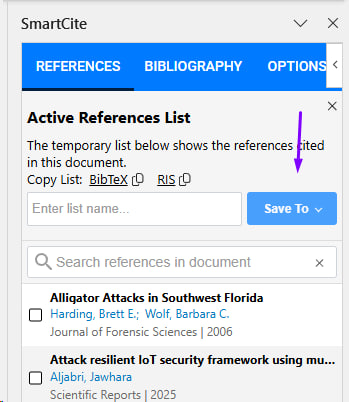
  3. Next, find the library in app.papersapp.com and select all items in that list (use CTRL + A on Windows or Command + A on Mac to select all items in the list. )
  4. Right-click the selected items to reveal the secondary menu. Choose EXPORT > BIB. 
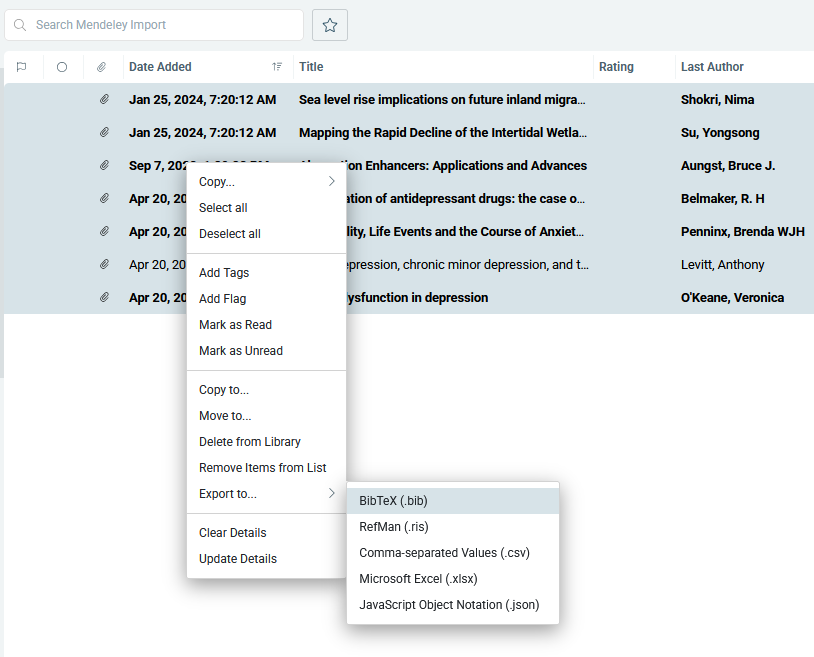
  5. That will download the BIB file to your desktop to it can be shared and added to Endnote to ensure all references exist in both tools. Your collaborator will be able to add the BIB file to their EndNote library easily.

SmartCite Steps:

With your document with SmartCite open, go to OPTIONS panel. Use this link to download the Papers to Endnote style to your desktop. Download the file using the button in the top right of the screen. 

Go to “Manage Custom Bibliography Styles” and upload the CSL file you just downloaded. You only need to do this step once. 

Before you update the document, we always recommend saving a copy, so you have the original to compare the new formatting with. 

Once uploaded, you can go to the BIBLIOGRAPHY tab and see the new style at the top. Click on it and go to “Update Bibliography” at the bottom.

Save your newly formatted document. 

EndNote Steps: 

Go to the Endnote toolbar in Word and select the “Update Citations and Bibliography” feature.  It looks like this:   

Endnote will now iterate through every inline citation in your document and attempt to match each one with a reference in your Endnote library.  You will see a prompt appear for each reference, where Endnote will show you the matched record.  Review each match and click “Insert” to confirm.  Once yo

Updated on October 17, 2025

Was this helpful?

  • Happy
  • Normal
  • Sad

Share This Article :

  • Facebook
  • LinkedIn
How do I add a custom citation style to the SmartCite Add-in?Update/Change Citation Style in SmartCite
papers_logo_ds

Your centralized, smart reference library solution to dramatically improve the way you discover, organize, read, annotate, share, and cite your research.

ReferenceManagement_Leader_Leader
users-love-us
Support
  • Help Center
  • Submit a Ticket
  • Release Notes
  • Feature Requests
  • Reseller Portal
Training
  • Download Center
  • Getting Started
  • Training Center
  • Live Training
Resources
  • Blog
  • Papers vs ReadCube
  • Institutional Plans
  • Enterprise Options
  • SmartCite for Word
  • SmartCite for Google Docs
  • SmartCite for Citekeys
  • Supported Styles
Consent
  • Terms
  • Privacy
  • Security Statement
  • Data Protection
  • Cookie Policy
|   © 2026 Digital Science Research & Solutions Inc.
Scroll To Top